
Knowhow Seller compares AI tools hands-on and checks product claims against public pricing and support documentation. Reviews are grounded in real workflow evaluation, product research, and comparison — not vendor marketing alone.
What are the best AI tools for presentations right now?
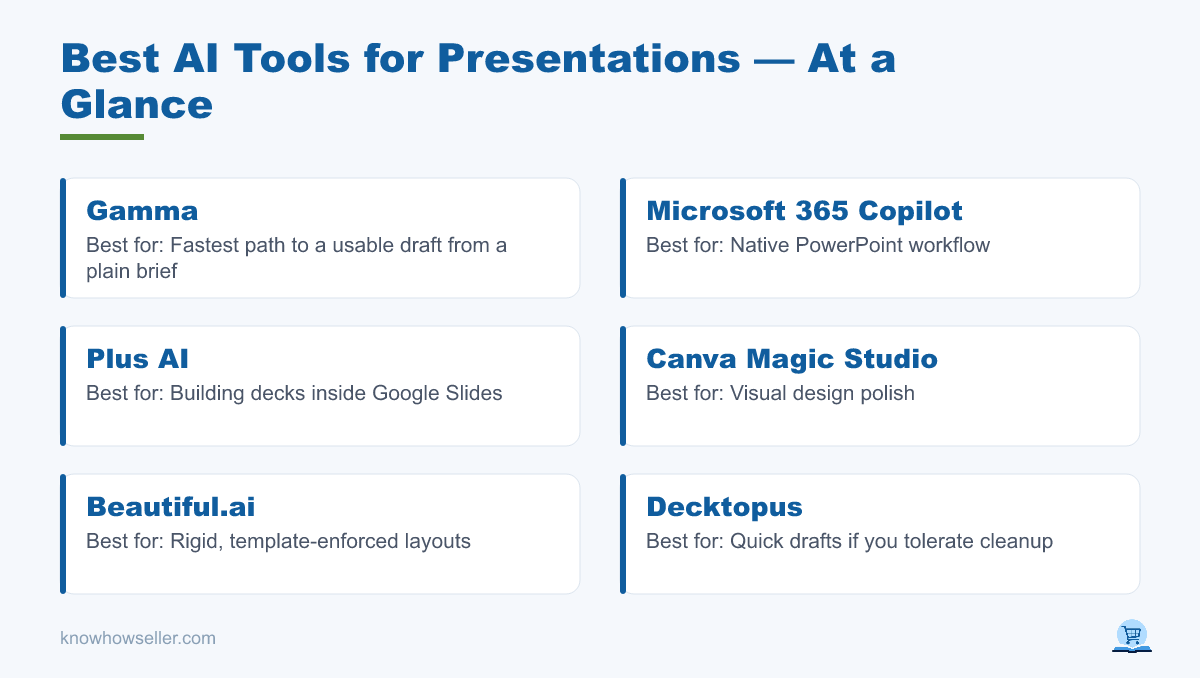
For most people, Gamma is one of the strongest AI tools for quickly turning a plain brief into a presentation-style first draft. Choose Microsoft 365 Copilot if your deck must live in PowerPoint, Plus AI if you work in Google Slides or PowerPoint add-ins, and Canva if design polish matters more than a native slide workflow.
The short version
- Fastest path to a usable draft: Gamma
- Best native PowerPoint workflow: Microsoft 365 Copilot
- Best inside Google Slides: Plus AI
- Best visual polish: Canva Magic Studio
- Most rigid (in a good way): Beautiful.ai
- Most dependent on your tolerance for cleanup: Decktopus, Presentations.AI
How did I test these AI presentation makers?
I compared the seven tools using the same type of real-world presentation brief: a product launch deck with a defined audience, data-driven slides, a competitor comparison, and a pricing section. The goal was not to produce a lab-grade benchmark, but to see which tools create useful structure, which ones preserve editable slide workflows, and which ones require the most human judgment before a deck is safe to present.
Each output was assessed on four things a real user feels immediately:
- Time to first draft — whether the tool gets you from prompt to viewable deck quickly enough to be useful.
- Slides needing manual fixes — whether the generated deck still needs rewriting, layout cleanup, fact-checking, or design repair.
- Export fidelity — whether the .pptx, PDF, or Google Slides workflow preserves editable text and a workable layout.
- Free-tier slide cap — what the vendor publicly says you get before a paywall, credit limit, watermark, or trial restriction.
The brief deliberately included claims that would need verification. That matters because AI presentation generators can produce confident-looking statements, sources, charts, and speaker notes that still need to be checked before anyone presents them.
Which AI presentation tool scored best overall?
Gamma is the best starting point if you want a fast, complete-feeling draft from a plain brief. Copilot is the safer choice when the file must remain a PowerPoint document from the beginning. Plus AI is the lowest-friction option for teams already building decks in Google Slides or PowerPoint. No tool should be treated as a finished-deck generator: the useful output is a structured draft, not a presentation you can safely deliver without review.
The scorecard (identical 12-slide brief, same day)
| Tool | Time to first draft | Slides needing fixes (of 12) | Export fidelity | Free tier |
|---|---|---|---|---|
| Gamma | Usually quick for a prompt-based draft | Human review required, especially for data and claims | Exports to PPTX, PDF, PNG, and Google Slides; expect cleanup when moving out of Gamma | Free plan uses non-refreshing AI credits and has per-prompt card limits, according to Gamma’s pricing/help pages |
| Microsoft 365 Copilot | Usually quick inside PowerPoint, depending on tenant, file, and prompt | Human review required; Microsoft also advises users to verify generated content | Native PowerPoint workflow | No standalone free presentation tier for Copilot in PowerPoint; availability depends on eligible Microsoft 365/Copilot licensing and admin settings |
| Plus AI | Usually quick inside Google Slides or PowerPoint | Human review required, especially for factual claims and chart logic | Works directly in Google Slides and PowerPoint, which reduces handoff friction | Vendor lists a 7-day trial with AI credits; paid plans use monthly credit allowances |
| Canva Magic Studio | Usually quick for visually polished drafts | Human review required; design polish can hide weak content | PPTX export is available, but complex Canva effects, fonts, and layouts may need cleanup in PowerPoint | Canva Free includes a limited monthly AI allowance; Canva currently describes this as up to 200 Standard AI uses or 20 Premium AI uses |
| Beautiful.ai | Usually quick once the deck structure is clear | Human review required; smart layouts are strongest when your content fits the template | Vendor lists editable PowerPoint export on paid plans | Vendor lists a 14-day free trial for paid plans, with credit card required |
| Decktopus | Usually quick for guided deck creation | Human review required; best for simple, guided presentation flows | Vendor supports PDF and PowerPoint download on paid workflows | Vendor says the first deck is free, but free decks cannot export and include a watermark |
| Presentations.AI | Usually quick for AI-generated draft decks | Human review required; check facts, hierarchy, and export results before delivery | Vendor lists PowerPoint/PDF export and higher-quality PowerPoint export on paid plans | Vendor lists a Starter plan with credits and slide limits; paid plans add more credits and export features |
Screenshots of generated decks can be useful for comparing layout quality, but they should be treated as examples rather than proof of a repeatable benchmark.


Why does export fidelity matter more than deck design?
Because most decks don’t stay where they were born. If your team, client, or conference organiser expects a .pptx, a beautiful web deck that breaks on export costs you the time it saved. Export fidelity is often the difference between a tool that looks good in a demo and a tool that survives real handoff.
PowerPoint and Google Slides remain the practical endpoints for many business decks. Microsoft 365 is deeply embedded in enterprise workflows, and Google Workspace is common in teams that collaborate in the browser. The exact user counts change over time, so the safer assumption is operational rather than statistical: your deck will probably be opened, edited, commented on, or exported outside the AI generator’s own viewer.
The common failure pattern is easy to understand: web-native tools build layouts for their own canvas, then approximate those layouts as fixed slide geometry on export. Text may stay editable, but line breaks, padding, custom fonts, and image treatments can shift. Native tools such as Copilot in PowerPoint, and add-ins that work inside Google Slides or PowerPoint, reduce that risk because the deck starts closer to its final editing environment.
Do AI presentation generators actually save time?
Yes, but less than the marketing implies. The real win is clearing the blank-page problem and giving you a structure to react to. The savings then get partially eaten by fact-checking, rewriting, chart repair, formatting cleanup, and stakeholder-specific edits. Expect a faster first draft, not a finished presentation.
Where the time actually went in my comparison:
- Structure was usually the strongest part. Most tools can turn a prompt into a plausible narrative arc. This is the genuine win.
- Data slides still need human ownership. Charts can become decorative, labels can drift from the original meaning, and numbers should be checked against the source material.
- Citations are a liability. Treat every AI-generated statistic, source, and market claim on a slide as unsourced until you verify it yourself.
- Speaker notes are often generic. They can help with a starting script, but the final argument still needs your voice and judgment.
“The generator’s job is to kill the blank page, not to be right. I stopped grading these tools on how good the deck looked and started grading them on how many slides I could keep after fact-checking and cleanup.” — Knowhow Seller
Which AI presentation tool should you pick?
Pick by where your deck has to end up, not by which demo looked best. If you present from a browser and value speed, use Gamma. If your organisation runs on Microsoft 365, Copilot’s native PowerPoint workflow can beat a nicer-looking draft that needs export repair. If you live in Google Slides, Plus AI is the least friction.
Match the tool to the situation
- You need a deck quickly and will present from a link: Gamma.
- Your deck gets emailed as a .pptx and edited by colleagues: Microsoft 365 Copilot.
- Your team’s decks live in Google Drive: Plus AI.
- The deck is client-facing and design is the point: Canva Magic Studio, then check the export manually.
- You want guardrails against ugly slides: Beautiful.ai.
- You’re testing on zero budget: Gamma, Canva, or Presentations.AI are the most practical places to start, but check current credit limits before relying on them for a full deck.
Free tiers change constantly
Every credit limit, trial length, export restriction, and AI allowance in this category moves quickly. Confirm on the vendor’s pricing page before you commit. As of this review, Gamma uses credits on the free plan, Plus AI lists a 7-day trial with credits, Canva lists limited monthly AI usage on Free, Beautiful.ai lists a 14-day trial, Decktopus says the first free deck is watermarked and cannot export, and Presentations.AI lists a credit-based Starter plan.
What’s the honest verdict?
AI presentation tools are now genuinely useful for structure and still risky for substance. They are drafting assistants, not deck authors. Used that way — brief in, skeleton out, you supply the numbers and the argument — they can be worth the subscription. Used as a shortcut to a finished deck, they can embarrass you on the data slide.