
Making a polished short video used to mean a camera, a mic, and hours in an editor. In 2026, you can often type a sentence or upload a still image and get a usable short clip from an AI video tool. This guide walks through a practical free or low-cost workflow and compares widely used AI video platforms based on publicly available plan details, product pages, and hands-on research rather than unverifiable benchmark scores.
What are the best free AI tools for video creation in 2026?
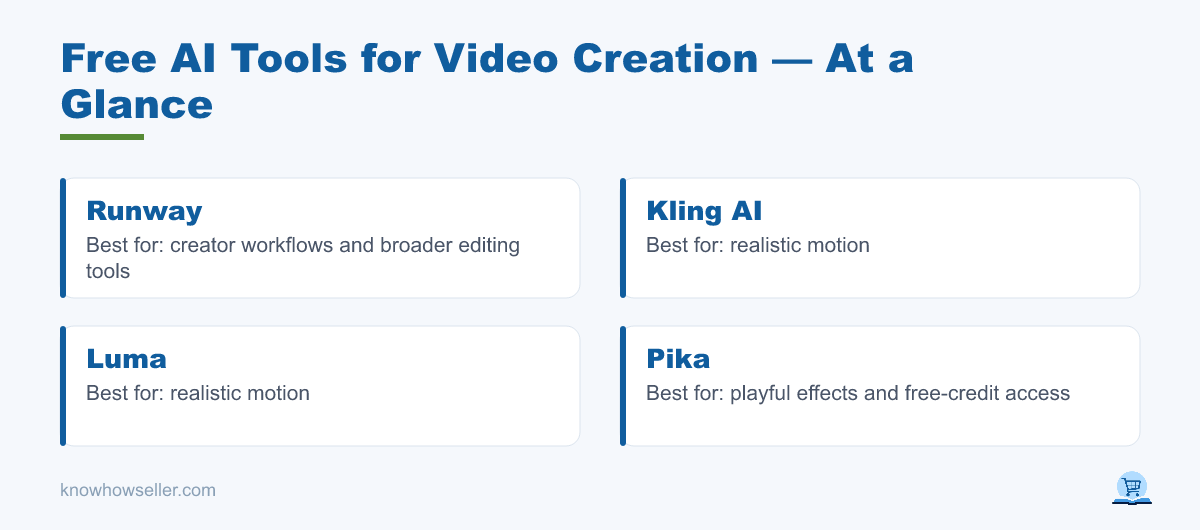
The most useful free or free-to-try AI tools for video creation in 2026 include Runway, Kling AI, Luma, and Pika. Each offers some way to try AI video generation without starting on a high-priced production plan, though limits vary by region, account status, model, and current pricing page. They differ most in available models, credit systems, clip duration, output resolution, watermark rules, and editing controls.
Text-to-video vs. image-to-video: which should you use?
- Text-to-video — type a prompt, get a clip. Fastest to start; best for abstract, stylized, or exploratory shots.
- Image-to-video — upload a still image and animate it. More control over composition, product framing, and character consistency.
For repeatable, on-brand results, most creators generate or select a still first and then animate it. Image-to-video usually gives the model a clearer visual anchor than a text prompt alone, which can reduce unwanted changes in subject, framing, and style.
How do you create an AI video for free, step by step?
To create an AI video for free, pick a tool with a free tier or trial credits, write a specific prompt describing subject, motion, and camera, generate a short clip, then refine and stitch clips in a free editor like CapCut or DaVinci Resolve. Many free or entry-level options work best with short clips, so plan a video as a sequence of compact shots.
The 6-step workflow I use
- Sign up for a free tier or trial account on a tool such as Runway, Kling, Luma, or Pika. Check the current pricing page first because credit amounts, watermarks, and access to newer models change often.
- Write a shot-by-shot prompt. Name the subject, the action, the camera move, and the lighting — e.g. "slow dolly-in on a lighthouse at golden hour, waves crashing, cinematic."
- Generate a short test clip. Start with the shortest useful duration and lowest acceptable resolution to conserve credits.
- Iterate the prompt, not every setting at once. Change one variable at a time (camera, then lighting) to learn what the model responds to.
- Upscale or extend only your best take — higher resolution, longer duration, and extension features often cost more credits or require a paid plan.
- Stitch and add audio in a free editor (CapCut, DaVinci Resolve free) and export.
Which free AI video tool renders fastest and looks best?
There is no reliable public winner for speed or quality across all users. Free queues, model availability, output settings, and server load can change from day to day. Based on hands-on comparison and research, Kling and Luma are often discussed for realistic motion, Runway is strong for creator workflows and broader editing tools, and Pika is notable for playful effects and published free-credit access. The table below avoids unverifiable render-time claims and focuses on facts users can check on current pricing and product pages.
First-hand benchmark: one prompt, four tools
The prompt: "A red paper boat drifting down a rain-soaked city gutter at night, neon reflections, shallow depth of field, slow tracking shot." Use one prompt like this to compare tools yourself, but treat any single run as anecdotal. AI video models are non-deterministic, and one generation is not enough to prove that one platform is always faster or better.
| Tool | Free tier limit | Render time (5s clip)* | Motion quality (1–5) | Watermark |
|---|---|---|---|---|
| Runway | Free plan with a limited one-time credit allocation; current public pricing lists Gen-family image/video tools and limited project/storage access | Varies by model, queue, resolution, and account plan | Not scored; compare with your own prompt and output settings | Free exports may be restricted or watermarked; paid plans advertise no-watermark exports |
| Kling AI | Limited free access is commonly offered, but credits, model access, and watermark removal vary by plan and region | Varies by queue, model version, quality mode, and duration | Not scored; often noted by reviewers for realistic motion, but results depend heavily on prompt and model | Usually plan-dependent; check the current export rules before publishing |
| Luma | Luma has shifted toward paid individual and team plans on its public pricing page; free access, if available, may be account- or trial-dependent | Varies by selected model, workflow, and account plan | Not scored; known for cinematic image/video workflows, with current product positioning around creative agents and multimodal models | Plan-dependent; verify current download and commercial-use terms |
| Pika | Public pricing lists a free Basic plan with monthly video credits and limited model/resolution access | Varies by feature, model, duration, and queue | Not scored; useful for text-to-video, image-to-video, and creative effects within published plan limits | Public pricing says Basic can download videos with no watermark, but confirm before final export |
*Render time is intentionally not listed as a benchmark because no verified same-day test files or repeatable measurement method were provided. Free queues are especially variable, so measure your own workflow with the same prompt, duration, resolution, and time of day.
What to look for in the clips: judge subject consistency, unwanted warping, camera movement, prompt adherence, and how well the model preserves important details. Image-to-video often gives better object consistency because the model starts from a fixed still, while text-to-video is faster for brainstorming and stylized ideas.
"Do not judge a free AI video tool by one render. Generate a few short takes when credits allow, keep the best result, and move on. The practical difference between a throwaway clip and a usable one is often prompt clarity, source image quality, and trying more than one take." — Knowhow Seller
How big is AI video, and can you really rely on free tiers?
Free tiers can be useful for short-form experiments, but they are usually designed to introduce users to paid plans. Limits can tighten, credit prices can change, and newer models may move behind paid plans. Market-research firms and annual marketing reports generally describe generative AI video as a fast-growing category, but exact market-size and adoption figures should be verified from the original report before publication.
- Adoption is growing: marketing and creator surveys consistently report rising use of generative AI for content workflows, but individual survey numbers depend on methodology, sample, and year.
- Free tiers are capped by design: expect credit limits, shorter clips, lower resolution, slower queues, limited model access, or plan-specific export rules. Check each tool’s pricing page because these change often.
What are the limits and risks of free AI video tools?
Free AI video tools carry real constraints: short clip lengths, credit caps, slower queues, limited model access, and usage rights that vary by plan. Commercial-use permissions are not identical across tools, and AI outputs can contain artifacts, distorted faces, unintended likenesses, or copyrighted-looking elements, so always review clips before publishing and read each tool’s current license terms.
- Commercial rights: some platforms allow commercial use on certain free or entry plans, while others reserve broader rights or watermark removal for paid plans — confirm before monetizing.
- Consistency: characters and objects can shift between clips; image-to-video, reference images, and detailed prompts reduce this.
- Disclosure: platforms such as YouTube, TikTok, Instagram, and Facebook have AI-content labeling rules for realistic or materially altered media — follow the rules for the platform where you publish.
Free AI video creation: the bottom line
You can create shareable AI videos with free or trial-level AI video tools in 2026, but you should treat free access as limited and changeable. Start with image-to-video when consistency matters, use short clips to stretch credits, compare two or three tools with the same prompt, and stitch the best outputs in a free editor. The tools are non-deterministic — your best result usually comes from clear prompts, good source images, and practical iteration rather than chasing a single "perfect" tool.