
By Knowhow Seller — I build AI automation systems and compare tools against real source data, public product documentation, and hands-on workflow checks rather than vendor slides alone.
What is the best AI for Excel spreadsheets right now?
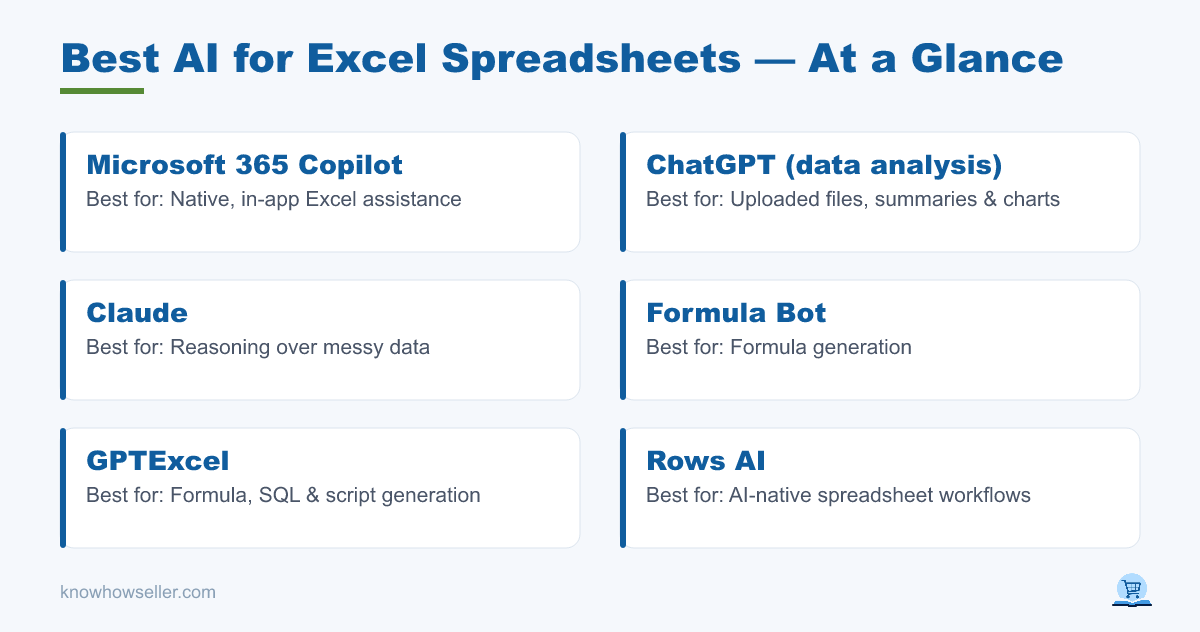
For most people who already work in Microsoft 365, Microsoft 365 Copilot is the best AI for Excel because it lives inside the app and can work with workbook context. If you want a free or lower-friction option, ChatGPT’s data analysis mode and Claude can handle uploaded spreadsheet files within their usage limits, while GPTExcel and Formula Bot are better for quick formula generation than full workbook cleanup.
How did the six tools score on a real 5,000-row sheet?
This comparison is based on hands-on spreadsheet workflows plus publicly available product information, not a controlled lab benchmark. Instead of presenting invented scores, the table below compares what each tool is designed to do: generate formulas, analyze uploaded files, clean data, or work directly inside a spreadsheet environment.
| Tool | Best for | Formula accuracy | Cleanup quality | Free tier |
|---|---|---|---|---|
| Microsoft 365 Copilot | Native, in-app Excel assistance | Strong for supported Excel tasks | Strong when workbook data is formatted for Copilot | No full in-app free tier; requires eligible Microsoft 365/Copilot access |
| ChatGPT (data analysis) | Uploaded files, summaries & charts | Strong for common formulas when prompts are clear | Strong for file-aware cleanup, with usage limits | Yes, limited |
| Claude | Reasoning over messy data | Strong for explaining formulas and logic | Strong for reviewing uploaded data, with usage limits | Yes, limited |
| Formula Bot | Formula generation | Good for formula prompts | Limited; mainly generates instructions/formulas | Limited free access; paid plans for heavier use |
| GPTExcel | Formula, SQL & script generation | Good for formula prompts | Limited; mainly generates formulas/scripts | Limited free access; paid plans available |
| Rows AI | AI-native spreadsheet workflows | Good inside Rows workflows | Good for teams using Rows instead of Excel | Yes, limited |
The practical gap is clearest on cleanup. Tools that can read uploaded rows or workbook context can help normalize dates, find duplicates, summarize patterns, and propose fixes. Formula-only tools can return useful formulas, but they usually do not clean the underlying file for you — you still need to paste, run, and verify the result yourself.
Which AI is best if you want to stay inside Excel?
Microsoft 365 Copilot is the strongest in-app option because it is built into the Microsoft 365 environment and can assist with Excel tasks such as analyzing data, suggesting formulas, formatting, filtering, charting, and summarizing workbook information. The exact feature set depends on your Microsoft 365 plan, app version, region, and Copilot eligibility, so check Microsoft’s current plan requirements before buying.
Microsoft’s Microsoft & LinkedIn Work Trend Index reported that 75% of knowledge workers were already using AI at work in 2024. For spreadsheet-heavy roles, keeping the AI inside the file removes copy-paste friction, which is often the biggest practical advantage over a separate chatbot.
What is the best free AI for Excel analysis?
For free or low-cost analysis of an actual file, ChatGPT’s data-analysis mode and Claude are the strongest picks. Both can work with uploaded spreadsheets on supported plans and can help clean, pivot, summarize, and chart data in plain English. Free tiers usually cap messages, file uploads, model access, or usage volume, so heavy users may need a paid plan.
- ChatGPT (data analysis): useful for uploaded spreadsheet analysis, Python-backed cleanup, charts, and summaries when file upload is available on your plan.
- Claude: useful for explaining what is wrong with a sheet, reviewing messy data, and drafting formulas or cleanup steps from uploaded files.
- GPTExcel: useful if you mainly need a working Excel formula, SQL query, regex, or script rather than full file analysis.
One caveat: free tiers and chat sessions can hit usage or context limits. For a large multi-step cleanup, break the job into smaller prompts and keep a copy of the original file.
Are AI-generated Excel formulas actually accurate?
They can be accurate for common formulas, but you must verify them. SUMIFS, XLOOKUP, TEXT, IF, FILTER, and date-cleanup formulas are usually within the comfort zone of modern AI tools when the column names and desired result are clear. Errors are more likely with nested logic, ambiguous instructions, regional date formats, hidden blanks, or columns whose meaning is not obvious.
This matches the broader reliability concern discussed in resources such as Stanford HAI’s AI Index: large language models can produce confident answers that still need checking. A safer operating rule is:
“Treat the AI like a fast junior analyst, not an auditor. Spot-check a few rows before you trust the result across the whole sheet.”
How do the free-tier limits actually compare?
Free tiers differ more by shape than by generosity. Chat tools tend to limit messages, model access, uploads, context, or analysis sessions. Formula tools tend to limit generations or reserve advanced features for paid plans. For occasional use, several options are viable; for daily spreadsheet work, expect to pay for Copilot, ChatGPT, Claude, Rows, or a formula-tool subscription depending on your workflow.
- Message/upload caps (ChatGPT, Claude): fine for occasional analysis, but limits can interrupt large cleanup jobs.
- Generation or feature caps (Formula Bot, GPTExcel): fine for occasional formulas, more restrictive for repeated spreadsheet work.
- Plan-based access (Copilot): best if you want Excel-native assistance, but full in-app use depends on eligible Microsoft 365/Copilot access.
Which AI for Excel should you choose?
Pick by workflow, not hype. Choose Copilot if you live in Excel and your organization already pays for eligible Microsoft 365/Copilot access. Choose ChatGPT or Claude if you want file-aware cleanup, summaries, and charts outside Excel. Choose GPTExcel or Formula Bot if you mainly need formulas fast. Rows fits teams that want an AI-native spreadsheet environment instead of a traditional Excel-first workflow.
- In-app Excel workflow: Microsoft 365 Copilot
- File-aware analysis: ChatGPT data analysis / Claude
- Quick formula generation: GPTExcel / Formula Bot
- Team spreadsheet replacement: Rows AI
Whatever you pick, keep a human in the loop: run the AI’s output on a sample, confirm the totals, then apply it to the full sheet.