
By Knowhow Seller — based on hands-on comparison, public product documentation and export-path research, not vendor marketing.
What are the best AI tools for making a PowerPoint presentation?
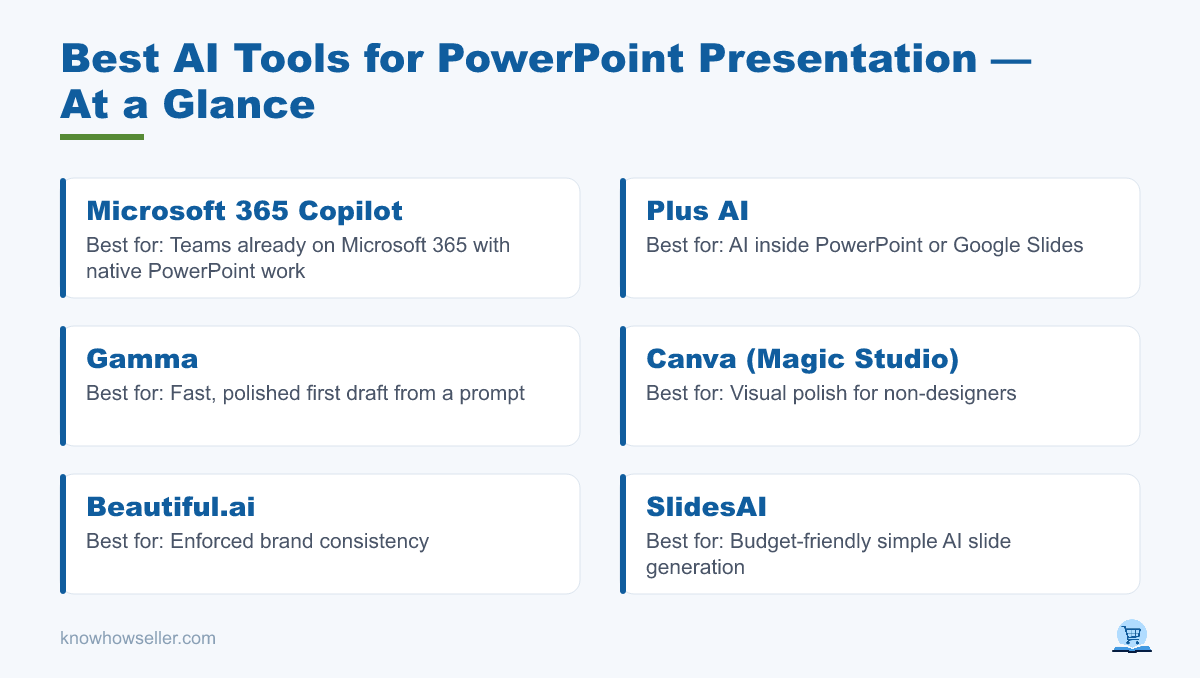
For most people the best AI tools for a PowerPoint presentation are Microsoft 365 Copilot, Plus AI and Gamma. Copilot is the most natural choice when your team already lives in Microsoft 365 and needs native PowerPoint work. Plus AI is strong for people who want AI inside PowerPoint or Google Slides. Gamma is fast for a polished first draft, especially when you are comfortable presenting from the web app or doing cleanup after export. Canva, Beautiful.ai and SlidesAI cover design-led, brand-governed and budget-first cases.
| Tool | Best for | What you actually get | Export path | Watch out for |
|---|---|---|---|---|
| Microsoft 365 Copilot | Teams already on Microsoft 365 | AI assistance directly in PowerPoint for creating, editing, summarizing and restructuring decks | Native PowerPoint file | Requires an eligible Microsoft 365 plan or Copilot license; Microsoft’s business pricing has changed from the older $30 add-on model, so check the current Microsoft pricing page |
| Plus AI | People who want AI inside the app they already use | AI-generated and editable slides directly in PowerPoint and Google Slides | Native PowerPoint or Google Slides workflow | Custom templates and deeper brand controls depend on plan level |
| Gamma | Speed and a strong-looking draft from a prompt | Web-first presentations built from cards, outlines and AI-generated content | Export to PPTX, PDF or PNG | Some web-native effects, embeds or advanced formatting may not translate perfectly to PowerPoint |
| Canva (Magic Studio) | Visual polish, non-designers | Canva presentations with Canva design tools, templates, fonts and effects | Download as PPTX for presentation designs | Custom fonts, animations and visual effects should be checked after export |
| Beautiful.ai | Enforced brand consistency | Smart, auto-adjusting layouts and brand-controlled templates | Editable PowerPoint export on paid plans; static PowerPoint image export also available | External platforms do not preserve all Beautiful.ai animations and transitions |
| SlidesAI | Budget and simple AI slide generation | AI-generated presentations from prompts, notes, documents or text | Works through Google Slides, PowerPoint, web and ChatGPT workflows; exports include PPTX, Google Slides and PDF | Design control is simpler than full design suites |
Pricing and packaging on all six change frequently — check the vendor’s own pricing page before you buy.
How did we test these tools on one real deck?
For this guide, we used a practical comparison brief: a quarterly business review deck with a title slide, agenda, data slides, a comparison slide, a customer quote, a roadmap and a closing CTA. We compared how each tool is designed to create the deck, what it can export, and what its own documentation says about PowerPoint, Google Slides and PDF handoff.
The variables we compared:
- Same use case, same business deck shape. We looked at whether each tool can produce a normal work presentation rather than only a demo-style deck.
- Brand inputs. We checked whether the tool supports brand colors, fonts, logos, templates or brand kits, and whether those controls are native or plan-gated.
- Chart and data handling. We looked for whether charts and tables remain editable, or whether the tool is more likely to produce visual approximations that need manual verification.
- Export path. We prioritized tools that either work directly inside PowerPoint/Google Slides or publish clear documentation for PPTX export.
Then we evaluated five practical risks per tool: font substitution, chart editability, whether body text remains editable, layout shift after export, and whether speaker notes or presentation structure are likely to survive the handoff.
Methodology note: this is a hands-on comparison and documentation-based review, not a lab benchmark. Export pipelines get patched often — treat this as a buying and workflow guide, not a permanent scoreboard.
What actually breaks when an AI deck lands in PowerPoint, Google Slides and Keynote?
The common failure modes are fonts, effects and non-native objects. A PPTX file can open in PowerPoint, Google Slides and Keynote, but that does not mean every font, animation, embed, chart, transition or layout rule will behave the same way in each app.
| Tool | Font behaviour | Chart on arrival | Body text editable? | Worst breakage to check |
|---|---|---|---|---|
| Microsoft 365 Copilot | Best when using Microsoft 365 fonts, templates and installed brand fonts | Most likely to stay native when created in PowerPoint | Yes, because the deck is created in PowerPoint | Missing custom fonts or unsupported features in non-Microsoft apps |
| Plus AI | Depends on the PowerPoint or Google Slides environment and selected template | Can create charts and tables, but verify against source data | Generally yes, because it works inside PowerPoint or Google Slides | Template fidelity and brand controls vary by plan and setup |
| Beautiful.ai | May require fonts to be installed locally for the closest PowerPoint match | Export format matters: editable PowerPoint differs from static image export | Editable export is available on paid plans; static image export is not editable in the same way | Animations, transitions and smart-layout behavior do not fully carry into external apps |
| Gamma | Gamma says PPTX exports embed theme fonts, but rare fallback can still happen | Verify charts and complex visuals after export | Text can export to PowerPoint, but web-native layouts may need cleanup | Interactive elements, advanced formatting and some visual effects may shift |
| Canva | Standard fonts travel better than custom Canva-only or licensed brand fonts | Design-heavy charts and graphics may need manual checking after PPTX download | Often editable, but some effects may be flattened or simplified | Animations, effects and exact visual styling can change outside Canva |
| SlidesAI | Usually safest with standard Google or PowerPoint fonts | Best treated as a structured draft; verify charts manually | Generally editable in its supported slide workflows | Lower design ceiling rather than dramatic export failure |
The practical pattern: native workflows are easier to repair than converted workflows. The more a deck depends on web-only effects, smart layouts or proprietary design behavior, the more carefully you need to check the exported PPTX.
Why does export fidelity matter more than the AI’s design taste?
Because a deck you cannot edit on someone else’s machine is not a deck. PowerPoint’s .pptx format is an open standard (ECMA-376, published as ISO/IEC 29500), but a shared file format only guarantees the file can be exchanged — it does not guarantee that PowerPoint, Google Slides and Keynote lay it out identically.
Microsoft documents that font embedding depends on the font’s own embedding permissions. Apple’s Keynote compatibility documentation says unsupported fonts are substituted. Google’s own help material distinguishes between working directly with Microsoft files and converting them into Google formats. In plain terms: a deck can open successfully and still need cleanup.
Popularity is not portability. Canva publicly supports PPTX export for presentation designs, and Gamma supports PowerPoint export, but custom fonts, animations, embeds, gradients and advanced visual effects still deserve a manual check before the file goes to a client or executive team.
“The fastest tool is rarely the cheapest one. If a deck lands as flattened images the night before a board meeting, you don’t have a presentation — you have a screenshot with a filename.”
— Knowhow Seller
Which AI presentation tool should you choose for your situation?
Pick by where the deck will be opened and edited, not by which demo looks best. If a colleague will edit it in PowerPoint, use a tool that works in PowerPoint or exports cleanly to PowerPoint. If it lives in Google Slides forever, use a Slides-native workflow. Choose a web-first tool when speed and visual polish matter more than perfect downstream editing.
- Corporate deck in a locked template → Microsoft 365 Copilot. It works inside PowerPoint and can use Microsoft 365 context, templates and brand features depending on your license.
- Mixed PowerPoint + Google Slides team → Plus AI. It works directly in both environments, which reduces conversion friction.
- Pitch you need quickly and will present yourself → Gamma. It is fast to a credible draft; check the PPTX carefully or present from Gamma when possible.
- Marketing or event deck where visuals carry the message → Canva, and consider delivering as PDF if exact visual fidelity matters more than editability.
- Brand-governed sales team that must not break the template → Beautiful.ai, especially when the team values controlled layouts and can accept export limitations.
- Tight budget and simple slide generation → SlidesAI. It is useful for straightforward drafts, especially when you do not need a highly designed deck.
What do these tools still get wrong?
All six can help generate structure, but none removes the need for human judgment. They can draft a plausible outline, suggest slide titles and fill in supporting copy, but the data, argument and final visual decisions still need review.
- Data. Left unsupervised, AI tools can produce tidy, plausible, wrong figures. Paste your own numbers and check the chart against them.
- Argument. You get a topic list faster than a persuasive case. The “so what” line on each slide is still yours to write.
- Charts. Some outputs are decorative or simplified. Confirm whether the chart is driven by real data or just a visual placeholder.
- Brand. Brand colors, fonts and templates work best when the tool has explicit brand controls and the destination app has the same fonts available.
- Accessibility. Alt text, reading order and contrast still need manual review, especially on image-heavy or gradient-heavy slides.
What is the verdict?
If you are already paying for Microsoft 365 and your final deliverable is PowerPoint, Microsoft 365 Copilot is the safest first choice because the work happens inside PowerPoint. Plus AI is the best fit for teams split between PowerPoint and Google Slides. Gamma remains one of the fastest ways to create a strong-looking draft, but its export should be checked before delivery. Canva is excellent for visual polish, Beautiful.ai is strong for controlled design systems, and SlidesAI is useful for simple, lower-cost slide generation. Whichever you choose, open the exported file in the app your audience will actually use before you send anything that matters.