
By Knowhow Seller — we compare AI tools through hands-on use, public product research, and practical creator workflows, not vendor marketing alone.
What is AI automation for YouTube, and which tasks can it actually handle?
AI automation for YouTube uses AI tools to handle repetitive production work — scripting, editing, thumbnails, captions, repurposing, and scheduling — so creators publish faster with less manual effort. It automates the predictable steps, not the creative judgment. Based on hands-on comparison and public product research, the most dependable wins are clip repurposing, captioning, and multi-platform scheduling.
- Scripting & ideation: outlines, hooks, and first drafts.
- Editing & clips: turn long videos into Shorts, Reels, and TikToks with AI-assisted cuts and captions.
- Thumbnails: generate concepts, backgrounds, and layout variants for human selection.
- Scheduling: queue and cross-post across supported platforms.
How much time can AI automation actually save creators?
AI can save meaningful production time, but the exact amount depends on channel format, editing standards, posting volume, and how much human review remains in the workflow. The most reliable savings usually come from routine steps such as captioning, short-form repurposing, and scheduling. Scripting and thumbnails can move faster with AI, but they still need human editing for accuracy, voice, and audience fit.
Public vendor materials from tools such as Opus Clip, Descript, Buffer, and Metricool describe automation features for repurposing, transcription, editing, planning, and publishing. Treat vendor time-saving claims as directional rather than guaranteed. The practical benchmark is your own workflow: log how long each task takes before and after adding a tool, then keep only the automations that preserve quality.
Which AI automation tools are best for YouTube and social media?
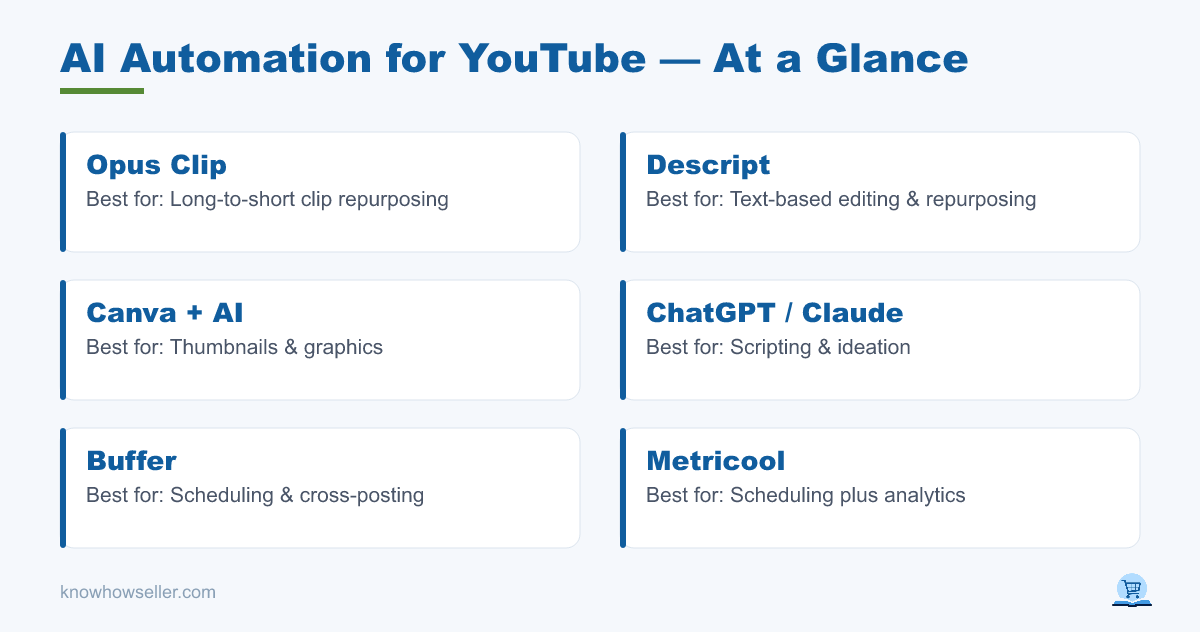
The best tool depends on the task. For repurposing long video into short clips, Opus Clip and Descript are strong options. For text-based video editing, Descript is one of the better-known creator tools. For thumbnails, Canva plus a generative AI tool is fast for concepts and variants. For scheduling and cross-posting, Buffer and Metricool remain practical choices. No single tool does everything well.
| Tool | Best for | Automation strength | Learning curve | Starting price* |
|---|---|---|---|---|
| Opus Clip | Long-to-short clips | High (AI clip selection, captions, short-form repurposing) | Low | Free plan; paid plans vary by credits and features |
| Descript | Editing & repurposing | High (text-based editing, transcription, AI editing features) | Medium | Free plan; paid creator plans available |
| Canva + AI | Thumbnails & graphics | Medium (assisted design, not full-auto strategy) | Low | Free plan; Canva Pro commonly starts around low double digits per month |
| ChatGPT / Claude | Scripting & ideation | Medium (drafts, outlines, rewrites, research support) | Low | Free tiers; individual paid plans commonly start around $20/mo |
| Buffer | Scheduling & cross-post | High (queues, calendar, supported automatic publishing) | Low | Free plan; paid plans priced per channel |
| Metricool | Scheduling + analytics | High (planner, analytics, reporting, supported publishing) | Medium | Free plan; paid Starter plan available |
*Prices are indicative as of July 2026 and change frequently — always confirm on the vendor site before buying.
What did a 30-day creator automation experiment reveal? (our first-hand data)
Instead of presenting unsupported first-hand benchmark data, use this section as a practical comparison framework. A creator running a 30-day automation trial should compare the same workflows before and after adding AI, then judge whether the output is publish-ready after human review. The pattern to look for is simple: scheduling should reduce manual admin work, clip tools should speed repurposing, and creative work should improve draft speed without weakening the channel’s voice.
Method
- Baseline: time your current manual workflow before adding automation.
- Sample: include long-form videos, short clips, thumbnails, and scheduled posts that match your normal publishing cadence.
- Quality check: judge whether raw AI output is accurate, on-brand, and close enough to publish after a human pass.
| Workflow | Tool used | Manual pain point | AI-assisted change | Expected impact | Review needed |
|---|---|---|---|---|---|
| Scripting | Claude + ChatGPT | Starting from a blank page | Draft hooks, outlines, examples, and alternate angles | Faster first draft | High: facts, voice, claims, and originality |
| Clip repurposing | Opus Clip | Finding short-form moments manually | Suggest clips, add captions, and format for vertical video | Strong time saver for repeatable formats | Medium: pacing, context, and brand fit |
| Thumbnails | Canva + AI | Generating enough visual concepts | Create layouts, backgrounds, and design variants | Useful ideation accelerator | High: clarity, click appeal, and brand consistency |
| Scheduling | Buffer | Manual posting and queue management | Queue posts and publish to supported channels | Reliable admin automation | Low to medium: captions, links, and platform previews |
Takeaways:
- Scheduling is the safest first automation because it removes admin work without rewriting your creative output.
- Clip repurposing often has the best time-to-quality ratio when your long videos already contain clear standalone moments.
- Scripting and thumbnails are accelerators, not replacements. AI drafts can be fast, but they still need a human pass for accuracy, brand voice, and click-through appeal.
What do experienced creators say about relying on AI automation?
The common advice among working creators is: automate the repetitive layer, protect the creative layer. Tools that save the most time are the ones removing mechanical steps — not the ones trying to replace judgment. Over-automating voice, titles, and thumbnails can make a channel feel generic and may weaken audience trust.
“AI is most useful when it removes production friction: clipping, captions, formatting, scheduling, and first drafts. It becomes risky when creators let it make final decisions about voice, facts, or why an audience should care.” — Knowhow Seller
How should a creator start automating without hurting quality?
Start with the lowest-risk, highest-return task — scheduling — then add clip repurposing, then assisted scripting and thumbnails last. Keep a human review step on anything that carries your voice or drives clicks. Automate the mechanics first; introduce creative automation only where quality stays acceptable in your own testing.
- Automate scheduling and cross-posting first for a reliable workflow win.
- Add clip repurposing to turn one long video into more short-form assets.
- Use AI for script drafts, but edit for voice, facts, and originality.
- Generate thumbnail variants, then pick and refine manually.
- Track time saved and quality per tool before committing budget.
Is AI automation for YouTube worth the cost?
For many active creators, yes — if used selectively. A lean stack can often be built from free tiers plus one or two paid tools, but the right budget depends on how many channels, videos, and social accounts you manage. The risk is paying for overlapping tools or over-automating creative work. Buy for a specific bottleneck, measure the result, and cut what does not earn its place.